How to Disable YouTube Shorts: 3 Methods That Actually Work
YouTube doesn't want you to turn Shorts off. Here's how to do it anyway — on iPhone, on desktop, and in your own head.
Skip to the fix
- Method 1 — Turn Off Shorts on iPhone or Android — official YouTube setting, 2 taps
- Method 2 — Remove Shorts on Desktop — browser extensions, uBlock Origin
- Method 3 — Add Friction Before You Open YouTube — change the habit, not just the feed
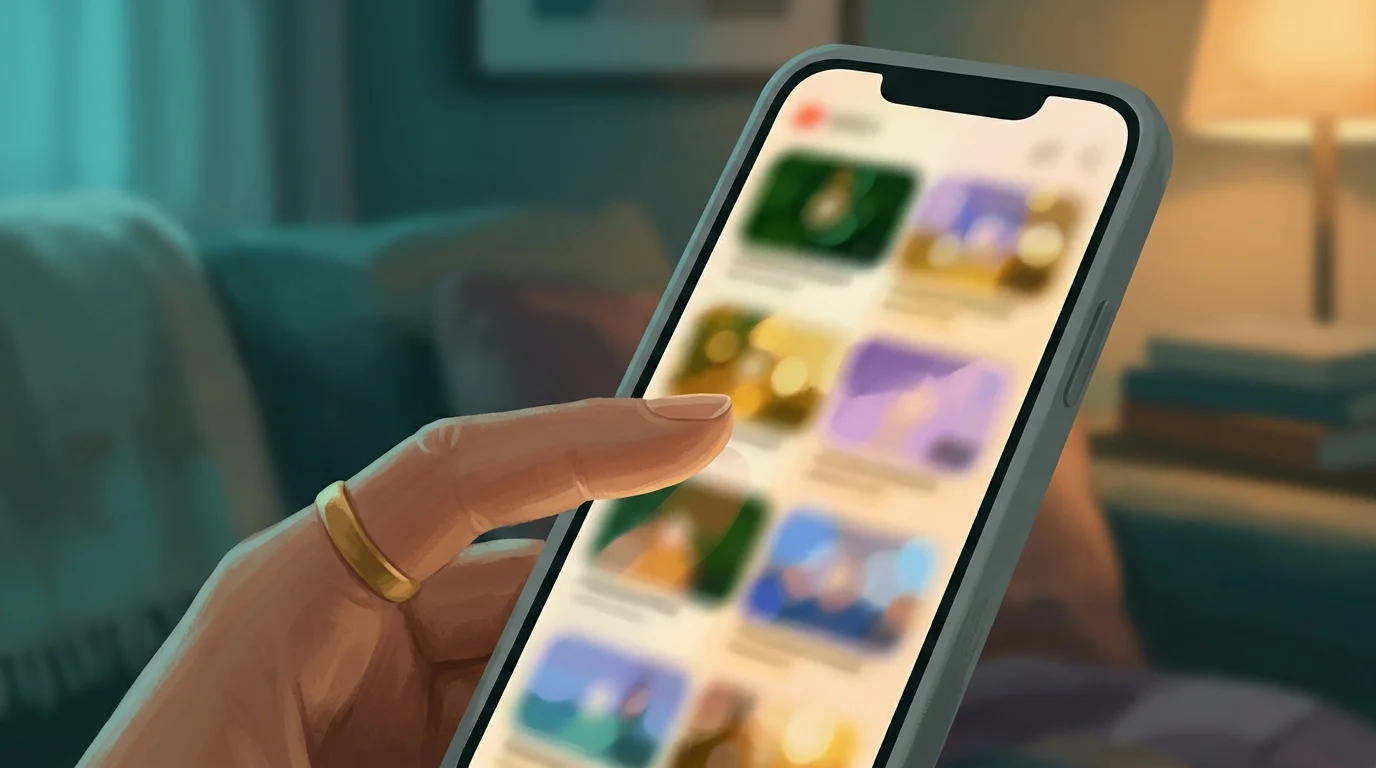
Notice what your thumb does when YouTube loads. You opened it to find something specific — a tutorial, a video from a channel you follow, something you actually meant to watch. But the Shorts shelf is right there, and before you've processed what you're looking at, your thumb has already started swiping.
That's not an accident. YouTube Shorts is designed to intercept you exactly at that moment — when your intent is clear but the path to it runs through the feed. By the time you realize you've been swiping for ten minutes, the original reason you opened the app has gone somewhere you can't quite find.
Here's the direct answer: YouTube quietly added an official way to turn off Shorts in early 2026 — a zero-minute feed limit buried in Time management settings. Combined with browser extensions on desktop and one more layer for the underlying habit, there are three approaches that actually hold.
Why YouTube Shorts Is So Hard to Put Down
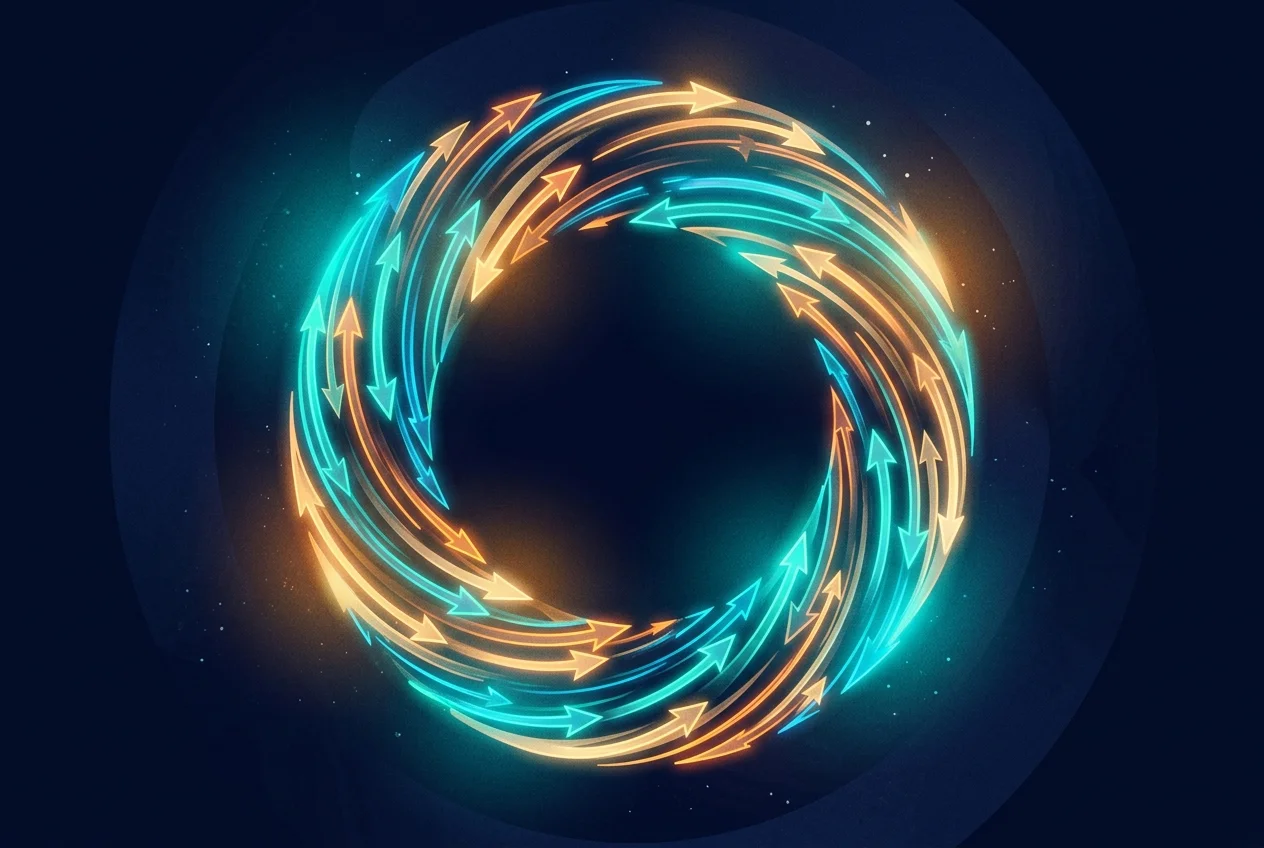
It helps to understand what you're actually dealing with before trying to disable it. YouTube Shorts uses the same core mechanism as TikTok and Instagram Reels: a vertical, swipe-driven infinite feed where the next video starts immediately. Research published in Frontiers in Human Neuroscience (2025) found that users with short video addiction show measurably heightened activation in the orbitofrontal cortex — the brain region associated with impulse control and reward evaluation — when exposed to short video cues. The brain isn't just enjoying the content. It's in a prediction loop.
Psychologists call the mechanism variable-ratio reinforcement — the same design principle that makes slot machines the most addictive form of gambling. You never know if the next swipe will be a throwaway or something you immediately send to three people. That unpredictability keeps the dopamine system running even when you're no longer having fun. Research from the Spanish Institute of Clinical Neuroscience found that neurons reconfigure themselves toward rapid response patterns under repeated exposure to this format — strengthening impulsive behavior while weakening sustained attention. The feed isn't neutral infrastructure. It's a habit-forming architecture.
Have you noticed that the moment you put YouTube down, the urge to open it again arrives almost immediately? That's the loop reasserting itself. Knowing this doesn't make it easier to stop — but it does clarify what you're actually trying to change. You're not fighting a preference. You're navigating an engineered pull. And these social media effects on brain structure are more significant than most people realize.
Method 1 — Turn Off Shorts on iPhone or Android (Official Setting)
In early 2026, YouTube added an official way to remove Shorts from your feed. It's buried in Time management settings, not where you'd think to look — but once set to zero, Shorts stop appearing on your homepage entirely.
How to do it: Open the YouTube app → tap your profile picture → Settings → Time management → Shorts feed limit → select 0 minutes. That's it. The Shorts feed on your homepage disappears immediately.
What it actually does: The 0-minute limit means you technically hit your Shorts allowance the moment you open the app, so the feed never loads. YouTube previously only allowed limits as low as 15 minutes — the zero option was added as part of a broader push toward digital wellbeing controls in early 2026. The Shorts tab in the bottom navigation may still be visible, and Shorts can still appear in your Subscriptions feed, but the main endless-scroll homepage feed is gone.
If you want to go further on iPhone: Turn off Shorts notifications in Settings → Notifications to remove the external trigger that pulls you in when you weren't already thinking about it. Combined with the feed limit, this covers both the pull and the push.
Method 2 — Remove Shorts on Desktop
Desktop browsers have more flexibility. Browser extensions can surgically remove the Shorts shelf, Shorts tab, and Shorts recommendations from YouTube without affecting any other YouTube functionality.
For Chrome and Edge: Search the Chrome Web Store for "Remove YouTube Shorts" or "Hide YouTube Shorts." Multiple well-maintained extensions exist in this category. Install one, reload YouTube, and the Shorts shelf disappears from the homepage, the sidebar no longer shows a Shorts tab, and Shorts recommendations stop appearing in search results.
For Firefox: Search the Firefox Add-ons library for the same terms. The same categories of extensions are available.
Using uBlock Origin: If you already run uBlock Origin, you can add custom filter rules targeting YouTube's Shorts elements. This is more technical but gives you granular control and doesn't require a dedicated extension.
The desktop method is the most complete solution for full-feed removal. The Shorts content still exists on YouTube — you can navigate to it directly if you choose — but it stops being something you scroll into by accident.
Method 3 — Add Friction Before You Open YouTube
Methods 1 and 2 target the feed. This one targets the habit. And it tends to do more long-term work.
The issue with just hiding Shorts is that the underlying reflex — opening YouTube as a stress response, a boredom response, or a transition-between-tasks response — stays intact. The app is still the path of least resistance. You open it for a different reason and the feed finds another way in. This is why people who successfully disable Shorts on desktop often find themselves watching more long-form content than they intended, or opening Instagram Reels instead.
What actually changes the habit is adding friction before the tap. Not a wall — those create resentment and get deleted within a week. A moment of intentionality. Something that gives the decision-making part of your brain a chance to participate before you're already inside the loop. The same attention effects documented in TikTok brain rot research apply here — the key variable is always what happens in the moment before you open the app.
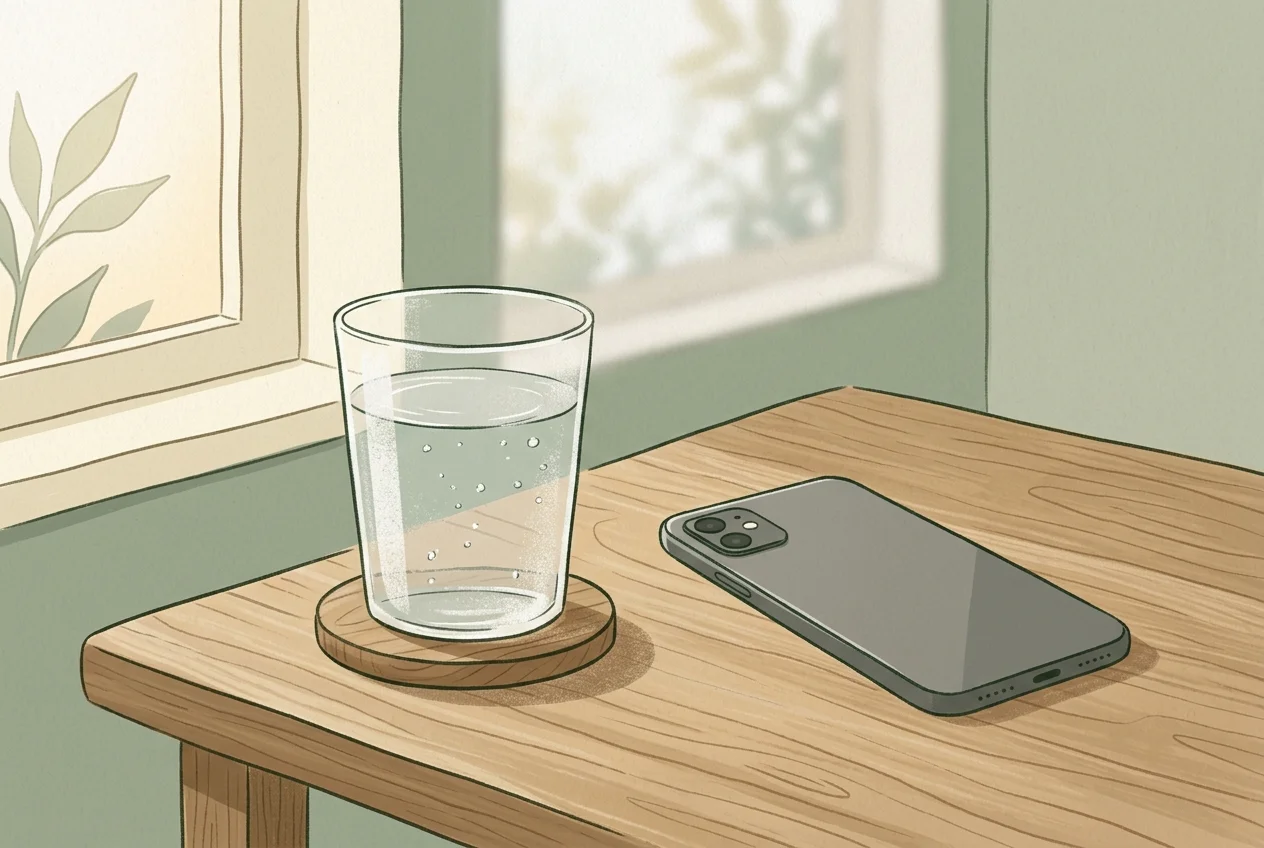
This is the principle behind Sip & Scroll. Before the YouTube app opens, it prompts you to take a sip of water and snap a quick selfie to confirm it. That's the friction layer — brief, non-punitive, and something you get something out of. After that, you get 45 unblocked minutes of YouTube, Shorts and all, with no restrictions. The session resets: another sip to continue, or you decide you're done. It's not about blocking access. It's about making the tap a choice instead of a reflex — which is the actual behavior change that lasts.
The three methods stack. Remove Shorts from your desktop with a browser extension. Reduce its surface area on iPhone through notification settings and Screen Time. And add a moment of intentionality before you open the app at all. Each layer addresses a different point in the behavior loop. Together, they make YouTube something you use, rather than something that uses you. You don't have to choose between never watching and watching for an hour without meaning to. There's room in between, and it starts with the pause.
How to Recognize When Shorts Has Become a Loop
There's a difference between watching YouTube Shorts intentionally and watching YouTube Shorts because stopping requires more friction than continuing. Most people start in the first category and migrate to the second without noticing the transition.
The clearest signal: you open YouTube Shorts without deciding to. You're doing something else — waiting for a page to load, between tasks, walking to the kitchen — and your phone is in your hand and YouTube is open before you've consciously made that choice. That's not preference. That's a conditioned reflex. Your nervous system has learned that certain environmental cues (boredom, transition, mild discomfort) should trigger the opening motion, and it's executing that program faster than your deliberate mind can intercept.
Secondary signals are subtler. Have you noticed the hollow feeling that follows a long Shorts session? Not satisfaction — the specific flatness that arrives when you've consumed a lot and absorbed almost nothing. Or the way the urge to open YouTube returns within minutes of closing it, even when you were just in it for twenty minutes? That's the variable-ratio loop reasserting itself — your brain trying to resolve the prediction tension that the format left unresolved.
A third signal: time distortion. Short-form video is specifically designed to make time pass untracked. The swiping motion is continuous, there's no chapter break or episode end that marks time passing, and the algorithm ensures there's always something marginally more interesting just one swipe away. If you've regularly lost thirty or sixty minutes inside a Shorts session — genuinely not knowing how long you'd been in it — that's not a character flaw. That's the feed doing exactly what it was engineered to do.
Recognizing the loop doesn't require a diagnosis or a label. It just requires noticing. The cognitive signs of smartphone addiction usually appear in subtler ways than people expect — not in grand moments of crisis, but in the cumulative pattern of small unconscious choices. Once you can see the pattern, you can interrupt it. And interruption — not elimination — is usually the goal.
What Happens When You Reduce YouTube Shorts
The first thing most people notice when they add friction to their Shorts habit is that the urge to open it is stronger than they expected. This feels discouraging. It isn't. The urge surfacing at noticeable intensity is confirmation that the habit had been running mostly below awareness — automatic and invisible. Making it visible is the first step toward making it optional.
The first few days of reduced Shorts consumption tend to involve more restlessness, more noticeable boredom in quiet moments, and an increased impulse to check the phone in transitions. This is withdrawal in the behavioral sense — not dramatic, not dangerous, but real. Your nervous system is accustomed to a hit of novelty at specific moments, and when the hit doesn't arrive, it registers that absence as discomfort. The discomfort is temporary. The habit's grip weakens measurably within a week.
After the initial adjustment period, most people report a quieter relationship with the phone. The urge doesn't disappear — the conditioned behavior is still there — but it stops feeling urgent. Boredom becomes more tolerable rather than an emergency requiring immediate resolution. Attention starts recovering: longer sustained focus, less difficulty finishing things, less mid-task drift toward the phone.
This trajectory is supported by the dopamine detox research — the brain's reward sensitivity recalibrates when the constant novelty supply is reduced. What felt like a low-stakes way to pass time starts costing more in attention capital than it returns in entertainment value. You don't need to abstain entirely. You just need enough friction that each session starts with a decision rather than a reflex. That decision changes everything about the session that follows. And the right tools on iPhone make that friction sustainable rather than something you white-knuckle for three days before deleting.
Frequently Asked Questions
How do I disable YouTube Shorts on iPhone?
YouTube added an official setting in early 2026: open the YouTube app → tap your profile picture → Settings → Time management → Shorts feed limit → select 0 minutes. The Shorts feed on your homepage disappears immediately. For extra coverage, also turn off Shorts notifications under YouTube Settings → Notifications.
How do I turn off YouTube Shorts on desktop?
Install a browser extension — search "Remove YouTube Shorts" in the Chrome Web Store or Firefox Add-ons library. These extensions remove the Shorts shelf from the homepage, the Shorts tab from the sidebar, and Shorts from search results while leaving regular YouTube intact. uBlock Origin users can add custom filter rules targeting YouTube's Shorts elements for the same effect without a dedicated extension.
Is YouTube Shorts addictive?
Research published in Frontiers in Human Neuroscience (2025) found measurably heightened activation in the orbitofrontal cortex — the brain's impulse-control and reward-evaluation region — in users with short video addiction when exposed to Shorts cues. The format uses variable-ratio reinforcement, the same mechanism behind slot machines: you never know if the next video will be a throwaway or something worth sharing, which keeps the brain's prediction system running even past the point of genuine enjoyment.
Why can't I stop watching YouTube Shorts?
The vertical swipe format, infinite feed, and personalized algorithm create a loop that bypasses deliberate decision-making. Each swipe is a micro-bet on whether the next video will be interesting — that unpredictability keeps the dopamine prediction system engaged. You're not failing to stop; you're encountering engineering specifically designed to make stopping require more effort than continuing.
Does hiding YouTube Shorts actually help with screen time?
Hiding the feed removes the passive trigger — you won't scroll into Shorts accidentally. But it doesn't address the reflex of opening YouTube as a stress or boredom response. The deeper fix is adding intentional friction before the app opens, so your decision-making can participate before you're already inside the loop. Browser extensions plus a pre-open friction layer address different parts of the same problem and work better together than either alone.
Make every YouTube session a choice
One sip before you scroll. 45 minutes of intentional access. No lockout, just a pause.
Download Sip & Scroll — Free